> For the complete documentation index, see [llms.txt](https://docs.revrobotics.com/llms.txt). Markdown versions of documentation pages are available by appending `.md` to page URLs; this page is available as [Markdown](https://docs.revrobotics.com/rev-professional-development-technical-path/gs/setup.md).
# DUO Control System Set Up
{% hint style="info" %}
Before getting started, you will need to have the REV Hardware Client or REV Hardware Client 2 installed. It's recommended for new users to install [REV Hardware Client 2](https://docs.revrobotics.com/rev-hardware-client-2) (Released August 2026 for Windows, Mac, and Linux).
The programming interface (Blocks and OnBot Java) is the same for both versions.
{% endhint %}
Setting up the DUO Control System for the first time can be broken into 4 steps:
1. Powering Up
2. Updating
3. Managing settings
4. Connecting the Driver Hub to the Control Hub
## Materials
Before getting started you will need:
From the kit:
* [ ] Control Hub
* [ ] Driver Hub
* [ ] 12V Slim Battery
* [ ] Orange USB Cable
* [ ] Switch Cable (Recommended)
Additional items:
* [ ] Computer
* [ ] REV Hardware Client 2 Installed
* [ ] Internet Access
{% hint style="warning" %}
Locations with restricted internet access, such as a school with a firewall/web filtering, may experience trouble installing the REV Hardware Client 2 or updating devices. Please contact your IT for assistance.
{% endhint %}
## Powering Up
### Control Hub
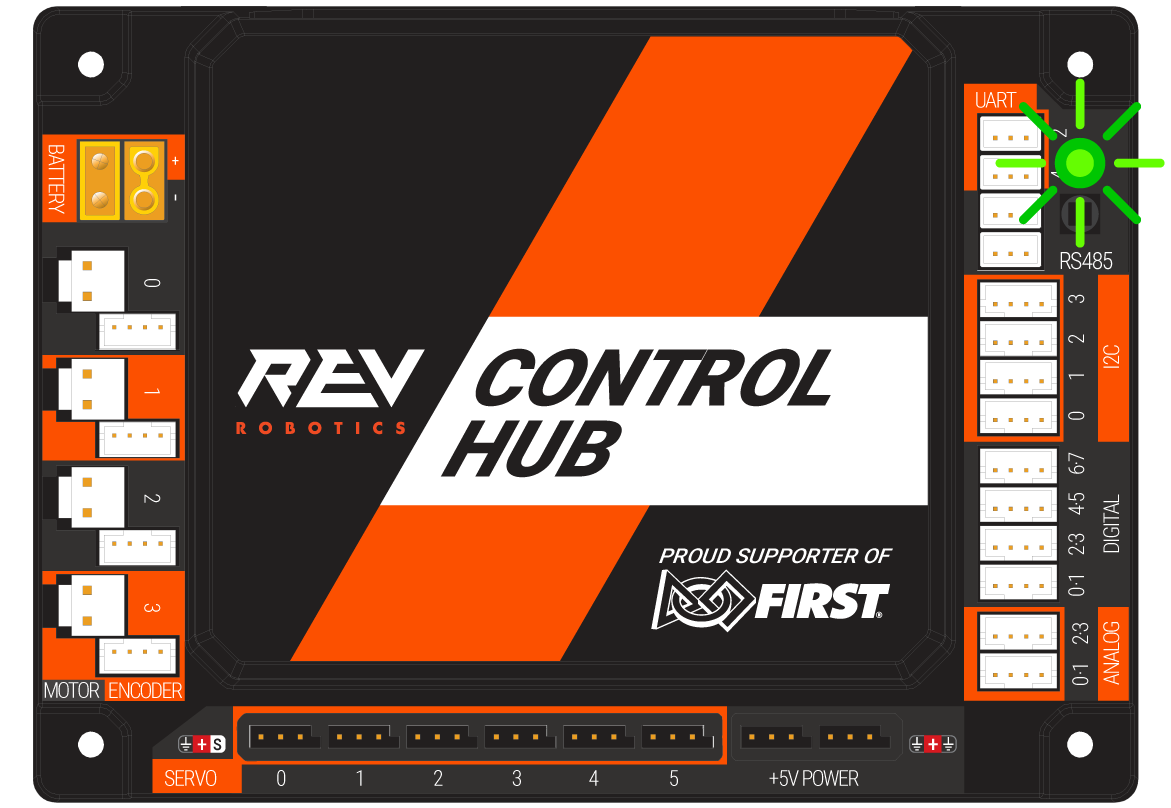
The Control Hub is powered with a 12V Slim Battery. The battery connects to the yellow XT30 port labeled as "Battery".
When first powering on, the light on the Control Hub will illuminate blue then change to green when fully booted.
At this point it's ready for use!
### Driver Hub
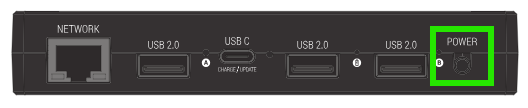
To power on the Driver Hub, hold the power button for a couple seconds until the REV logo appears on the screen. During boot up, a white light will flash and the green light beside the power button will appear.
The Driver Hub will take a few moments to reach the lock screen. The white light will no longer illuminate.
If this is the first time powering on the Driver Hub, the set up screen will appear.
#### Driver Hub Set Up Screen
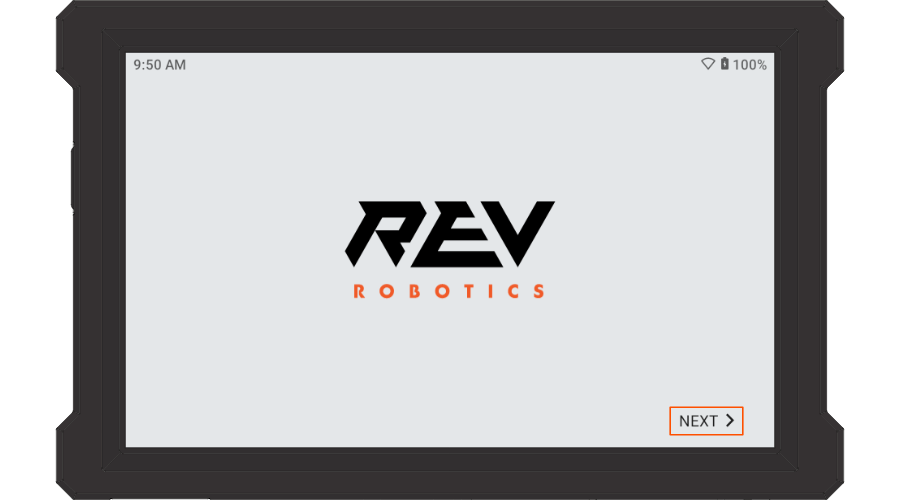
When the Driver Hub is first powered up, or a factory reset is performed, an initial set up process is needed. Start by selecting next on the main screen to continue.
For now, it's recommended to skip the step connecting the Driver Hub to a local Wi-Fi network.
On the next screen, set the date and time before continuing.
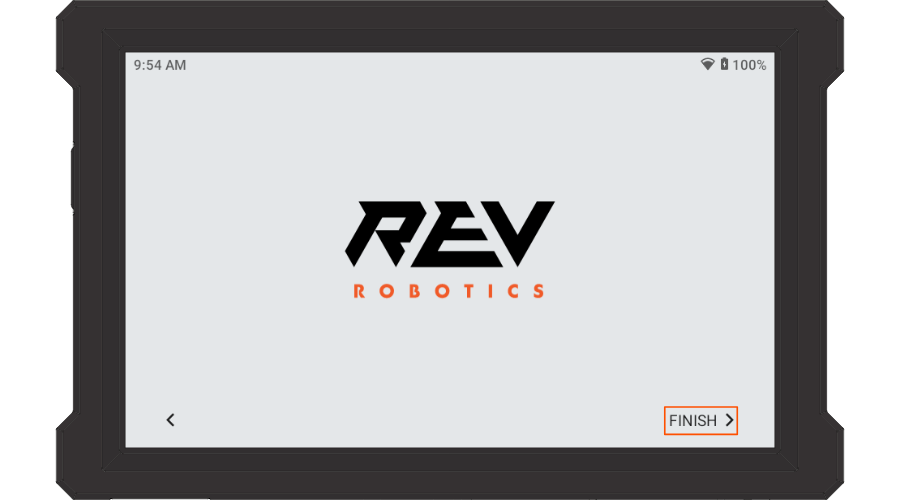
Initial set up is complete! Select Finish to go to the Driver Hub's homescreen.
## Powering Up Walkthrough Video
{% embed url="" %}
This video uses REV Hardware Client 1
{% endembed %}